
Getting Competition Ready in the FIRST Dashboard
2026-2027 Season — FIRST Chesapeake Team Guide
FIRST has rolled out a refreshed FIRST Dashboard and a new FIRST Storefront for the 2026-2027 season, and the process for getting your team competition ready is different than it was last year. Plan to spend more time than usual on registration and training this season — the steps below walk you through exactly what needs to happen and where.
1. What's Changed This Season
New FIRST Dashboard and FIRST Storefront
Starting this season, all FIRST teams will register through a new FIRST Dashboard experience. Once registration opens, teams will purchase their season registration and materials through the new FIRST Storefront instead of any previous vendor storefront (like Pitsco) your program may have used in past seasons.
If your team previously had a different vendor set up with your school or organization for registration purchases, take time now to add FIRST as a payor. Teams will no longer be directed to that prior storefront.
Financial Guarantor, Purchase Orders, and Tax Exemption
If your team plans to use a sales tax exemption certificate, or pay for registration or products with a purchase order, your team profile must be associated with a financial guarantor. This is new this season and is required before those payment methods will work at checkout.
Go to the “Team/Account Finances” tab in your team profile.
Search for your organization's existing financial guarantor, or set one up using your organization or institution's EIN (or the international equivalent).
If you need help with vendor or financial guarantor setup, review the FIRST Payment Terms or submit a ticket through the FIRST Help Center.
Purchasing for the Season
Season registration and materials are purchased through the new FIRST Storefront. As you prepare for the new season, keep the following purchasing notes in mind:
Starter kits and build materials are available through your program's approved robot ecosystem partners to give teams a foundation to build on early in the season.
Some game pieces and season-specific materials open for pre-order separately through partner vendors and may not be eligible for return once ordered.
Control system components and build kits can be purchased at a discount through the FIRST Storefront.
2. Lead Coach Requirements (Required Before Adding Students)
Before students can be added to your team roster, both Lead Coach 1 and Lead Coach 2 must each have a signed consent and release form, completed Youth Protection Program (YPP) requirements, and the Mentor Ready badge. Here's how to check your coaches' status and complete each requirement.
Step 1: Find Your Team Roster
Log in to the FIRST Dashboard and go to your Dashboard home screen.

The My Teams Dashboard — select your team from the Team List.
Click into your team, then select the Team Roster tile.

From the team page, select Team Roster.
Scroll down to the Team Leadership section and review your two Lead Coaches.
Step 2: Check for the Three Green Checkmarks
Each Lead Coach needs green checkmarks next to all three required items:
Consent & Release is on record
Meets Youth Protection Policy Requirements
Role-Specific Training Status: Meets Training Requirements

A coach who is fully cleared — all three items show a green checkmark.
If a coach is missing any of these, you'll see warning or info icons instead of green checkmarks, like this:

A coach who still needs to complete requirements — consent & release, YPP, and training are all outstanding.
You can see both coaches side by side on the Team Roster page — one may be fully cleared while the other still has outstanding items:

Team Roster view showing two coaches — one cleared, one with outstanding requirements.
If both lead coaches do not show green checkmarks on all three items, they'll need to complete the steps below to become competition ready.
Step 3: Complete Consent & Release
In the left sidebar, select My Policies.
In the top menu, select Acknowledgement Forms.
Choose the 2027 FIRST Consent & Release Form and follow the directions to complete it.

My Policies > Acknowledgement Forms — select the 2027 FIRST Consent & Release Form.
Step 4: Complete Youth Protection Program (YPP) Requirements
In the left sidebar, select Youth Protection.
All three Youth Protection requirements must be completed and show as green before this item is satisfied: reviewing and agreeing to the Youth Protection Policy, completing Youth Protection Training, and completing Screening.

The Youth Protection page — all three requirements must show a green checkmark and “COMPLETE” or “Meets Youth Protection Policy Requirements.”
Step 5: Complete Mentor Ready Training
In the left sidebar, scroll down to Quick Links and select FIRST Training.
On the first screen of the training platform, select your program (FLL, FTC, or FRC).

My Training Portal — after selecting your program, click View Full Catalog.
Click View Full Catalog.
From the Full Training Catalog, select the Mentor Ready training path and complete the training module to earn the Mentor Ready badge.
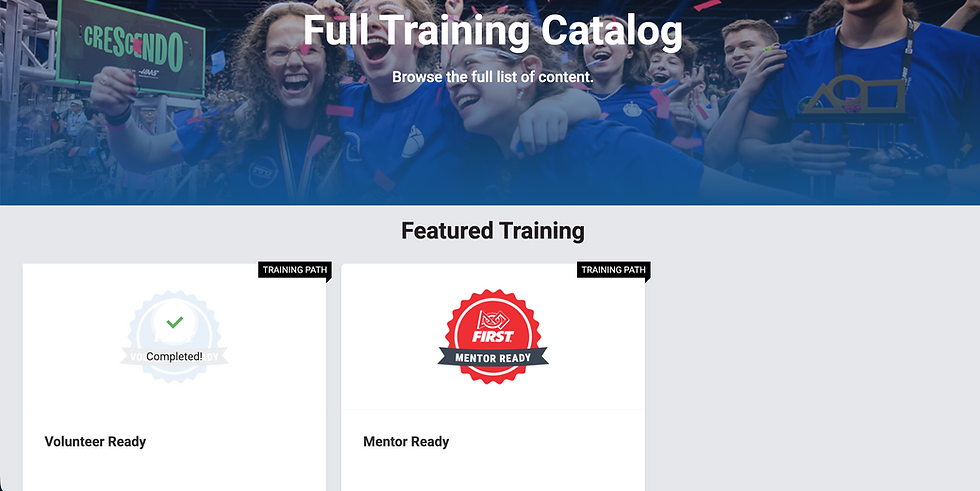
Full Training Catalog — select Mentor Ready to complete the training and earn the badge.
Once both Lead Coach 1 and Lead Coach 2 show green checkmarks on all three items — Consent & Release, Youth Protection, and Mentor Ready training — you're clear to begin adding students to your roster and collecting their Consent & Release forms.
3. Student Consent & Release Forms
Every student on your roster must have a signed Consent and Release form on file in the FIRST Dashboard before your team can participate in events. This applies to all students, with no exceptions.
Before you can even add students to your dashboard, both Lead Coach 1 and Lead Coach 2 must complete their own requirements first — see Section 2 above. Coaches must be cleared before student rosters can be built out.
4. Quick Checklist
Add FIRST as a payor if you previously used a different vendor for registration purchases.
Set up your team's financial guarantor if you plan to use a tax exemption certificate or pay by purchase order.
Confirm both Lead Coach 1 and Lead Coach 2 have all three green checkmarks: Consent & Release, YPP, and Mentor Ready training.
Once coaches are cleared, add students to the roster and collect a signed Consent & Release form for every student.
