
FIRST Chesapeake FTC Qualifier Registration App Team Guide
Updated: Oct 1
Support: ftc-teams@firstchesapeake.org
This guide walks you through everything you need to register your team, submit qualifier preferences, and manage your assignments in the FIRST Chesapeake FTC Qualifier Registration app.
Logging In
First Time Logging In
Before your first login, you will receive an email at the address listed in your FIRST dashboard from ftc-teams@firstchesapeake.org with a magic link to set up your account. If you don’t see it in your inbox, please check your SPAM folder. If it went to your SPAM folder, please mark it as NOT SPAM. Click the link in the email. You will be taken to a page to create your password. Once your password is set, log in using your email address and password from that point forward.
Don't see the setup email? Check your spam or junk folder. The email comes from ftc-teams@firstchesapeake.org. If you still cannot find it, contact ftc-teams@firstchesapeake.org for help. |
Forgot Your Password?
If you forget your password, contact ftc-teams@firstchesapeake.org and staff will reset it for you.
Lead Coach 1 As LC1 you have the ability to add additional coaches to your account and reset their passwords directly from your dashboard. If you forget your own password, contact ftc-teams@firstchesapeake.org. |
Multiple Coaches
LC2 will receive their own setup email and can log in using their own email address and password. LC1 can add additional custom users on the account. LC1 can manage other users and reset their passwords from the dashboard.
 
|
Policy Acknowledgment
Before accessing your team's dashboard, you will be asked to acknowledge the Event Participation Policy, Code of Conduct, Volunteer Requirement Policy, and Sporting Ethics & Behavior Guidelines (Game Manual §1.5). Read each document and check the box to confirm. You only need to do this once per season.
If you coach multiple teams, all of your teams will be listed when you acknowledge the policies. A single acknowledgment applies to all of your teams at once — you do not need to log in separately for each team to complete this step.
Tip If you close the page before completing this step, you will be asked again the next time you log in. |
 |
Your Team Dashboard
Once logged in, you will see your team's dashboard. At the top you will see your current eligibility status.
If you coach multiple teams, you will first be asked to select which team you want to view. Once logged in, you can easily switch between your teams at any time using the team switcher at the top of your dashboard.
Status | What it means |
FIRST Chesapeake Paid | Your registration fee has been received |
FIRST Inspires Paid | Your FIRST Inspires fee has been received |
Competition Ready | Your team has been marked as Competition Ready |
Not Yet Eligible | One or more required payments are still pending |
   |
Violation Flag
If your team has been flagged for an Event Participation Policy violation from a prior season, you will see a notice at the top of your dashboard.
What a violation flag means Your team will be placed at the end of the lottery order — you will still participate, but you are more likely to be placed at a less preferred qualifier. Contact ftc-teams@firstchesapeake.org with any questions. |
 |
Registration Payment
If your team has not yet paid the FIRST Chesapeake registration fee, the Registration section will appear on your dashboard.
Paying by Credit Card
Select the team(s) you want to register — if you coach multiple teams, all of them appear here
Click Pay by Credit Card
You will be redirected to a secure Stripe checkout page
Enter your card details and complete payment
You will be returned to your dashboard and your team will be marked as registered
Paying by Purchase Order
Select the team(s) you want to register
Click Pay by Purchase Order
Enter your PO number
Click Submit PO
Your registration will show as pending until FIRST Chesapeake staff confirms receipt of the purchase order. Click Get Invoice on your dashboard to download it.
Coaches with multiple teams You can register all of your teams in a single payment. All teams you coach that are not yet registered will appear in the list. Select each one you want to include before proceeding to payment. |
Once your registration is paid, a green Registered badge will appear and a Get Receipt link will be available to download your receipt.
 |
Qualifier Preferences - Round 1
When the preference window is open, you will see a Qualifier Preferences card on your dashboard. This is where you rank your preferred qualifier events for Round 1.
You can submit up to the max number of preferences, ranked from most to least preferred
You must submit the minimum number of preferences listed to be included in the lottery
You can change your preferences any time while the preference window is open
Once the window closes, preferences are locked
How to Submit Preferences
1. Use the menu to select your 1st, 2nd, 3rd, 4th, 5th, etc choice qualifiers
2. Click Save Preferences
3. You will see a confirmation that your preferences were saved
 |
Sibling Groups — Multi-Team Coaches
If you coach multiple FIRST Chesapeake teams, you can form a sibling group so your teams are placed at the same qualifier together.
If you coach teams that will be attending different events, you can create more than one sibling group. Each sibling group submits its own set of preferences and enters the lottery independently. For example, if you coach three teams that will attend the same events and one team with different preferences, you would create one sibling group for the three teams and register the one team separately.
How to Create a Sibling Group
1. Look for the Sibling Teams card on your dashboard — it appears automatically if you have other eligible teams with the same LC1 email
2. Click Create Sibling Group
3. Read the confirmation notice carefully — grouping your teams means the qualifier must have enough open spots for all of them at once, which may reduce the chance of landing at your top choice
4. Add your other teams to the group using the Add buttons
Important Rules
Sibling groups can only be created or changed while the Round 1 preference window is open
Once the Round 1 preference window closes, your sibling group is locked and cannot be changed
All teams in a sibling group must be paid before joining
Groups are capped at 6 teams — if you coach more than 6 teams, you can create a second sibling group
Each sibling group submits its own shared preferences and enters the lottery as one unit
During Round 2 You will see a read-only list of your group members but cannot make changes. Once sibling groups are established in Round 1, they cannot be changed for Round 2. |
Sibling Team Card  Sibling Group Note
 Adding Sibling Teams and Preferencing - Click the Blue Add Boxes 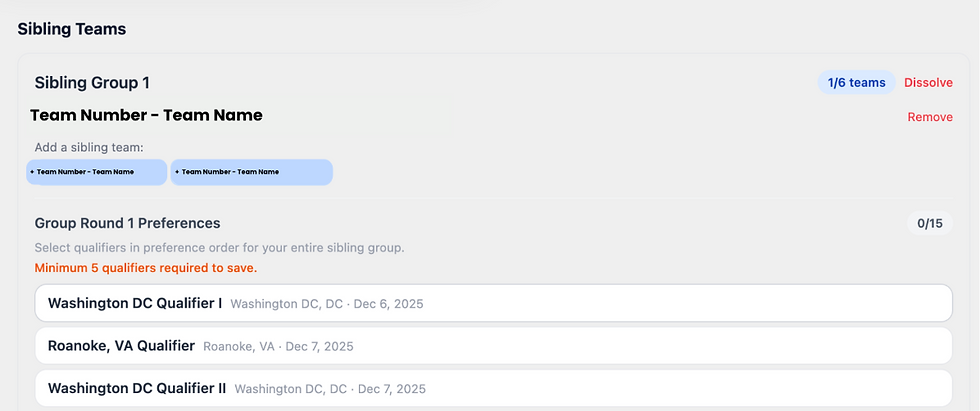
Save Preferences  |
Qualifier Assignments - Lottery Results
After the admin publishes lottery results, log in to see your assignment. You will see one of the following:
Status | What to do |
✅ Placed | You have been assigned to a qualifier. The event name, date, and location will be shown. No action needed. |
⏳ Pending | You were not placed in any of your preferred qualifiers. You will see the list of qualifiers with openings — choose 2-3 from the list and email to ftc-teams@firstchesapeake.org. |
If no qualifier works for your team's schedule, you may choose not to register for a two qualifiers. Contact ftc-teams@firstchesapeake.org if you need assistance.
 |
Not Placed Note

Qualifier Preferences - Round 2
Round 2 works exactly the same as Round 1. When the Round 2 preference window opens, submit your preferences for your second qualifier assignment.
Fairer lottery order in Round 2 Teams that drew a low position in Round 1 are automatically moved to the top of the Round 2 lottery order. This ensures every team gets a fair chance across both rounds. |
Optional Third Qualifier
After Round 2 placements are published, FIRST Chesapeake may open a third qualifier option. If available, you will see a Third Qualifier card on your dashboard.
Spots are first-come, first-served
You will only see qualifiers that do not conflict with your existing assignments by date or weekend and have spots available.
Pay by credit card through the app. PO’s may NOT be used for 3rd plays.
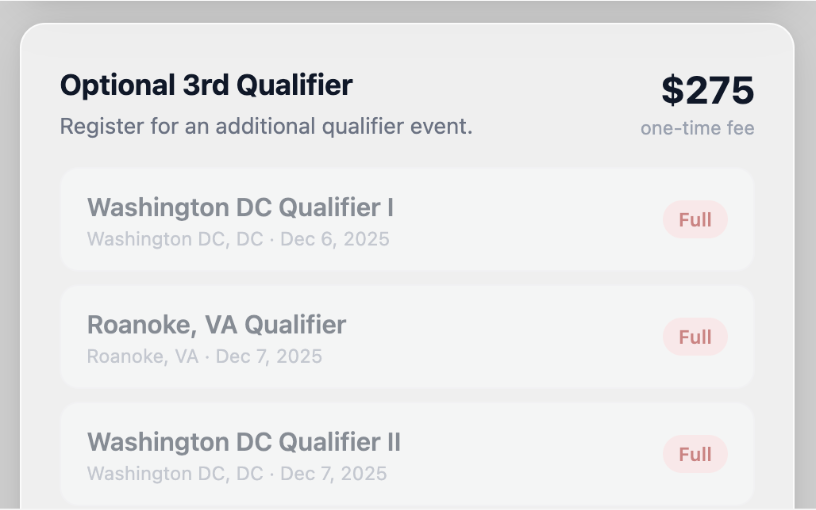 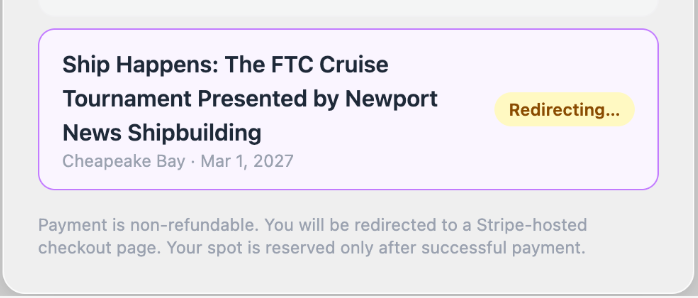 |
Important The third qualifier fee is non-refundable. Qualifiers that conflict with your existing Round 1 or Round 2 assignments by date or weekend will be shown as unavailable and cannot be selected. Qualifiers that are full will be shown as Full. |
Once registered, your third qualifier appears on the dashboard with a Get Receipt link.
District Championship
If your team advances to the FIRST Chesapeake District Championship, you will see a congratulations banner on your dashboard. From there you can pay the championship fee by credit card or submit a purchase order.
 |
Paying by Purchase Order
If your school or organization pays by purchase order instead of credit card, follow these steps:
1. Obtain a PO from your school or organization made out to FIRST Chesapeake
2. Log in and click Pay by Purchase Order on the relevant payment card
3. Enter your PO number and submit
4. FIRST Chesapeake staff will confirm your PO when payment is received — your team will be marked as paid at that point
  |
Documents and Receipts
Receipts and invoices are available directly from your dashboard:
Registration receipt — appears on the registration card after payment is confirmed
Registration invoice — appears if you submitted a purchase order that is pending
Third qualifier receipt — appears on the 3rd qualifier card after registration is confirmed
Championship receipt — appears after championship payment is confirmed
Click Get Receipt or Get Invoice on the relevant card to open. Click File -> Print to print to your receipt or invoice.
 |
Frequently Asked Questions
I did not receive my setup email.
Check your spam or junk folder. The email comes from ftc-teams@firstchesapeake.org. If you still cannot find it, contact ftc-teams@firstchesapeake.org for help.
I forgot my password.
If you are LC1, contact ftc-teams@firstchesapeake.org and staff will reset it for you. If you are an LC2 or additional coach, your LC1 can reset your password from their dashboard.
How do I add another coach to my account?
Log in as LC1 and go to your dashboard. You can add additional coaches and manage their access from there. Each new coach will receive a setup email with a magic link to create their password.
Can I change my qualifier preferences after submitting?
Yes, as long as the preference window is still open. Go back to the Preferences section and update your ranking, then click Save Preferences again. Your most recent submission is what counts.
Can I change my qualifier assignment after the lottery?
Contact ftc-teams@firstchesapeake.org. Moves are handled by FIRST Chesapeake staff on a case-by-case basis.
I am pending — what do I do?
Select a qualifier from the list shown on your dashboard. Any qualifier with open spots is available to you. If you are in a sibling group, your group leader can make the selection for all members.
I coach multiple teams. Do I need to log in separately for each?
No. When you log in with your email address, all teams you are associated with will be accessible. Use the team switcher at the top of your dashboard to move between teams.
Something looks wrong with my registration or payment status.
Contact ftc-teams@firstchesapeake.org with your team number and a description of the issue.
Questions? Contact ftc-teams@firstchesapeake.org |


